
How to Sign Up as a Tenant
-
Go to
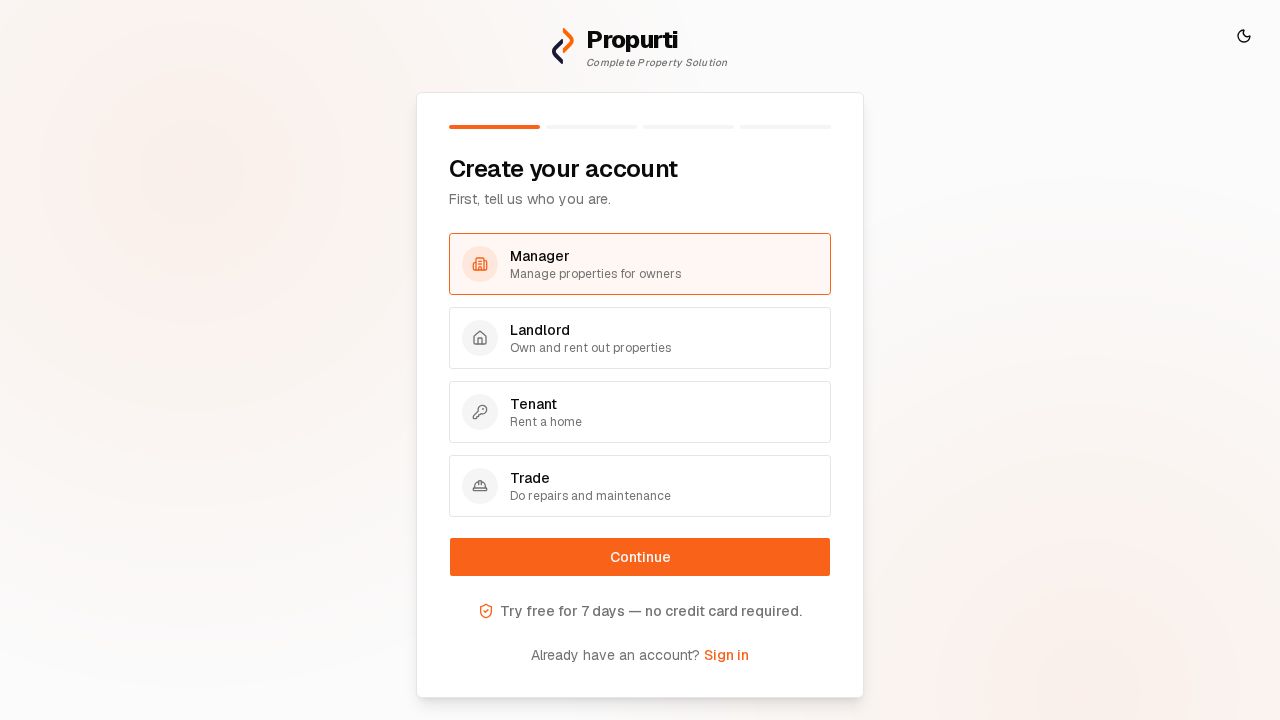
https://app.propurti.com/auth/signup. The Create your account page opens. -
Choose Tenant (“Rent a home”) from the four role cards.
⚠️ Heads up: If your property manager already invited you, use the link in your invitation email instead (see “How to Set Your Password After Receiving an Invitation”). If you enter an invited email here, Propurti resends the set-up link and shows “You’ve already been invited — we’ve resent your setup link. Check your email.”
-
Select Continue.
-
In Email, Enter your email address.
-
Select Send code. Propurti emails you a 6-digit code.
-
In Verification code, Enter the 6-digit code.
-
Select Verify email.
-
On the Almost there page, Enter your First name and Last name. The Email field shows the address you verified and you cannot change it.
-
Optional: Enter your Phone.
-
In Password, Enter a password with at least 10 characters.
-
In Confirm, Enter the same password.
⚠️ Heads up: If the passwords differ, Propurti shows “Passwords do not match.” If the password is too short, it shows “Password must be at least 10 characters.”
-
Select Create account.
What to expect
A message says “Account created!” and Propurti opens a welcome page with a Continue button.
Need help?
| Symptom | Cause | Fix |
|---|---|---|
| No code arrives | The email is in your spam folder, or you mistyped the address | Check spam. Select Back, correct the address and select Send code again. |
| Resend in 30s is grayed out | You can ask for a new code only after the countdown ends | Wait for the countdown, then select Resend code. |
| “Invalid or expired code” | You mistyped the code, or it expired | Enter the code again, or select Resend code for a new one. |
| Verify email is disabled | The code has fewer than 6 digits | Enter all 6 digits. |