
How to Choose or Change Your Subscription Plan
-
In the sidebar, select Billing & AI credits.
-
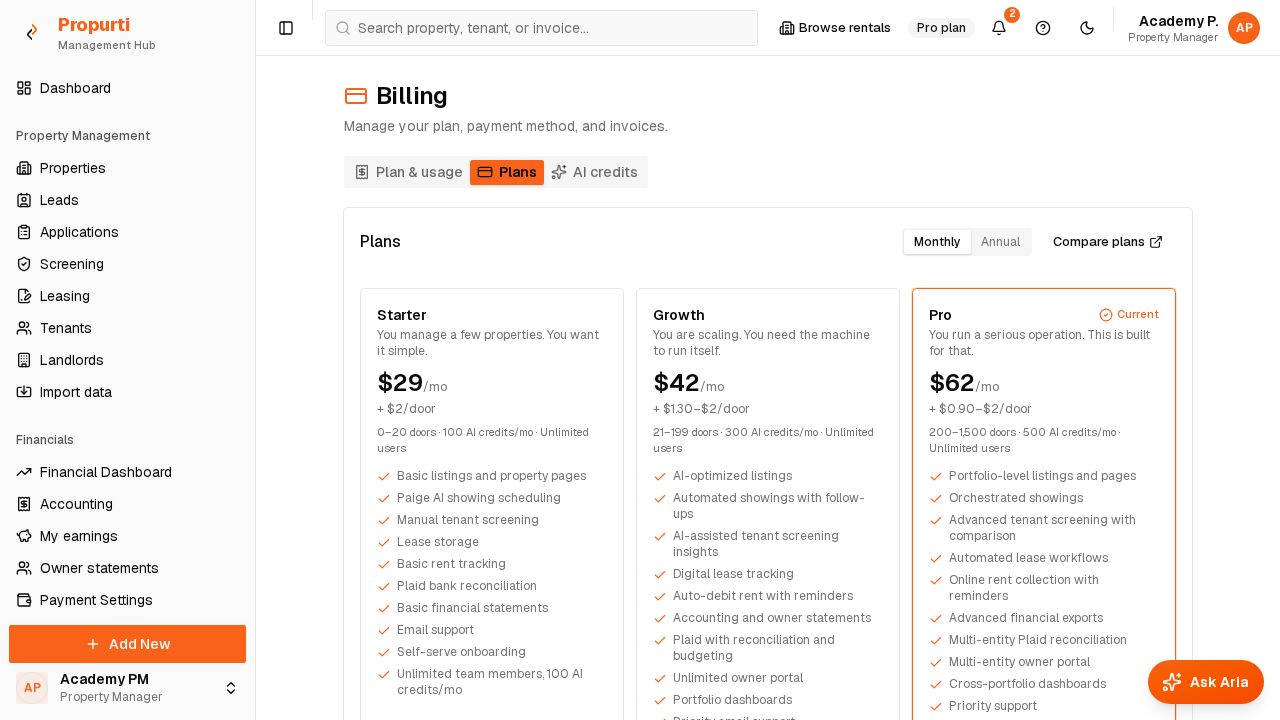
Select the Plans tab.
-
Select Monthly or Annual to see prices for that billing period. Select Compare plans to see every feature side by side.
Plan Monthly Annual Doors Starter $29/mo + $2/door $290/yr + $20/door 0–20 Growth $42/mo + $1.30–$2/door $420/yr + $13–$20/door 21–199 Pro $62/mo + $0.90–$2/door $620/yr + $9–$20/door 200–1,500 Enterprise Custom Custom 1,500+ The per-door rate drops as your door count grows. Prices exclude taxes.
-
Select Choose plan on the plan you want. For Enterprise, select Contact sales instead. The card of your current plan shows Current plan and you cannot select it.
-
In the Subscribe to dialog, Enter the number of doors in Managed doors. Use the minus and plus buttons if you prefer.
⚠️ Heads up: Each plan covers a fixed door range. If you enter fewer than the minimum, the dialog shows “Minimum is N.” (N is the plan’s minimum). Enter a number inside the range to see your total.
-
Check the total. The dialog shows Base plan, the Doors charge and Total per month (or Total per year).
-
Read the Subscription Agreement, then select the checkbox I have read and agree to the Subscription Agreement and authorize recurring per-door charges to my payment method.
-
Select Continue to payment. Propurti opens a Stripe page where you enter your card details and confirm the payment.
⚠️ Heads up: Continue to payment stays disabled until you accept the agreement and enter a door count inside the plan’s range.
What to expect
After you pay on Stripe, you return to Billing. The Plan & usage tab shows your plan with an Active badge, your Base fee, Per-door rate and renewal date. To save a card before you pick a plan, select Add a card on the Plan & usage tab. Propurti does not charge you until you pick and confirm a plan.
To move to a bigger or smaller plan later, repeat these steps and choose the other plan. Check the new total in the dialog before you continue.
Need help?
| Symptom | Cause | Fix |
|---|---|---|
| Continue to payment is greyed out | Agreement not accepted, or door count outside the plan’s range | Select the agreement checkbox and enter a door count that fits the plan |
| Message “Minimum is N.” | Your door count is below the plan minimum | Enter at least the minimum, or Choose plan on a smaller plan |
| Plan card shows Current plan | It is the plan you already have | Choose a different plan to change |
| You need more than 1,500 doors | Above the Pro range | Select Contact sales on Enterprise |
| Card declined on Stripe | The card could not be charged | Use a different card on the Stripe page and try again |
| Question about upgrading or downgrading | Plan changes use the same Choose plan steps | Follow the steps above and pick the new plan |